


Polymarket is a prediction market: a place where people trade shares in real-world outcomes, and the price of each share reads as a live probability. Polymarket turns questions like “who wins this summer’s tournament” or “when does Bitcoin cross $150k” into markets anyone can trade. Traders buy Yes or No shares with stablecoin-backed dollars, prices move as opinions and money move, and when the event resolves, correct shares pay out in full. Polymarket now also lives inside the ELLIPAL App as Predict, where you browse markets, make your call and sign with one tap of the X Card while your keys stay cold.
How Polymarket Works
Every Polymarket market is a question with a Yes and a No share, and each share trades between $0.00 and $1.00. The price is the market’s probability: a Yes share at $0.65 means the market collectively puts the chance at about 65 percent. One dollar of collateral mints one Yes share and one No share, the two prices always sum to one dollar, and when the market resolves, the correct side redeems at exactly $1.00 per share while the other side goes to zero. You can also sell at the market price any time before resolution, so you are not locked in before the whistle blows.
Polymarket settles trades in USDC-backed dollars on the Polygon blockchain, which means positions sit on-chain rather than on a private ledger. Outcomes are resolved through UMA’s optimistic oracle: anyone can propose a result by posting a bond, open challenge windows catch bad proposals, and disputed cases go to a token-holder vote. Polymarket itself does not decide who won. Since early 2026 Polymarket charges small taker fees on most market categories while makers trade free; the exact rates vary by category, so check the current fee page before trading.
Why Prediction Markets Matter
Pundits talk, prediction markets price. When people put real money behind a view, the resulting number tends to be more honest than a poll and faster than a headline, because being wrong costs something. The 2024 US presidential race made this mainstream: Polymarket’s winner market alone handled around $3.6 billion, and its probabilities ran on news tickers next to the official polls. The momentum carried into football, where the winner market for this summer’s tournament passed $1.2 billion before the opening match was even played.
Institutions noticed. Intercontinental Exchange, the parent company of the New York Stock Exchange, invested $2 billion in Polymarket in late 2025 and now distributes its event data to institutional markets. A category that started as a crypto curiosity has become a data source the traditional financial world pays for.
There is a quieter point inside all of this, and it is the reason a hardware wallet company cares: a prediction market position is an on-chain asset, held against a key. Your read on the world is yours. Your keys should be too.
Predict: Polymarket in the ELLIPAL App
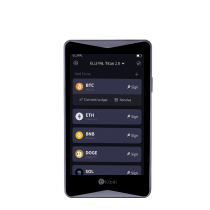
Predict is built into the ELLIPAL App for ELLIPAL wallet users. Open the Predict tab and the markets are right there, sorted by Sports, Crypto, Tech and Finance. Enable trading, deposit funds into your Predict account, and you are set: pick a market, make your call, review the order on screen, then tap your X Card to sign. Market orders fill at the going price, limit orders wait for the price you name, and you can sell a position or cancel an open order any time before resolution. Withdrawing back out works the same way, a few taps and a signature.
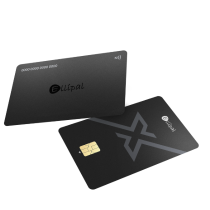
The part that matters is what does not happen: your private keys do not touch the phone. The ELLIPAL X Card is an NFC cold wallet, so keys are generated and stored inside an EAL6+ secure chip, and every order is signed on the card itself with a tap. A browser-extension wallet keeps its keys on an internet-connected device for as long as your positions stay open, which during a five-week tournament is a long time. The X Card keeps them cold for the whole run, and signing stays a deliberate, physical act.
A workflow worth copying from experienced traders: treat your Predict account as a float, not a vault. Keep long-term holdings in cold storage, deposit the amount you actually plan to trade, and sweep winnings back after markets settle. Self-custody works best as a habit, not a one-time setup.
Predict follows the same region rules as Polymarket, checked against your current IP. In a supported region you trade; in a restricted one the App switches to view-only mode, where markets stay visible but trading is off. Availability shifts with local rules, so the in-App check is the source of truth.
Get Started in Predict
Step-by-step guides, in the order you will need them:
- How to enable trading in Predict
- How to deposit funds into your Predict account
- How to place a market buy order
- How to place a limit buy order
- How to sell a position
- How to cancel an open order
- How to withdraw funds from your Predict account
Two Ways to Trade the Same Market
| Browser + extension wallet | ELLIPAL App + X Card | |
|---|---|---|
| Where keys live | On an internet-connected device | Inside an EAL6+ secure chip on the card |
| How you sign | Click in a pop-up | Tap the card to your phone |
| Exposure while positions are open | Keys stay hot for weeks | Keys stay cold the whole run |
| If you lose the device | Depends on your backup habits | Restore from your BIP39 seed phrase |
| Setup | Extension, seed phrase, network config | About 3 minutes, battery free |
Both routes reach the same markets. The difference is what is at risk while you hold a view.
Where People Use Polymarket
- Football summers. Tournament winner markets are the biggest sports markets on the platform, with group-stage and match-level questions alongside.
- Crypto milestones. When does Bitcoin cross a level, what does Ethereum do by a date, which chain ships first.
- Elections. The category that made Polymarket famous, from national races to leadership contests.
- Rates and macro. Central bank decisions, inflation prints, recession questions.
- Tech and product launches. Ship dates, model releases, court rulings in tech.
- Culture. Award shows, box office numbers, chart records.
Questions, Answered
Is Polymarket legit?
Polymarket has operated since 2020, settles on public blockchain rails, and took a $2 billion investment from Intercontinental Exchange, the NYSE’s parent company, in 2025. Its US arm runs as a CFTC-regulated exchange. Like any trading venue it carries real risk, but it is an established platform with on-chain, inspectable settlement.
Is Polymarket available in my country?
Availability varies by region and changes over time. Predict in the ELLIPAL App follows the same region rules as Polymarket, checked against your current IP, and US users are served through a separate regulated Polymarket exchange with its own rules. The in-App check is the source of truth for where you are right now.
Why does Predict show view-only mode?
Your current IP sits in a region where trading is restricted, so the ELLIPAL App keeps the markets visible but switches trading off. The check mirrors Polymarket’s region rules and runs in real time against your actual location. If the page says view-only, that result is final for that session.
Do I need a separate Polymarket account?
No. Predict runs inside the ELLIPAL App for ELLIPAL wallet users: set up your wallet, enable trading in Predict, deposit funds and you are ready. There is no separate Polymarket sign-up.
What does trading cost?
Polymarket introduced small taker fees on most categories in early 2026, while makers trade free. Rates differ by category and can change, so check Polymarket’s current fee page. Network fees on Polygon are minimal.
How are markets resolved, and can a result be wrong?
UMA’s optimistic oracle resolves markets: a proposed result stands unless challenged inside the dispute window, and disputes go to a token-holder vote. The system is designed so no single party, including Polymarket, decides outcomes. Disputes are rare but real, and resolution can take longer when one happens.
Can I lose money?
Yes. Shares on the wrong side of a result go to zero, and prices swing hard while events are live. Trade only with money you can afford to lose; nothing here is investment advice.
What happens if I lose my X Card with positions open?
Your positions live in your Predict account, not on the card. Restore your BIP39 seed phrase on a replacement card or compatible wallet, sign back into the ELLIPAL App, and your account and positions are still there. Losing the device does not mean losing the position.
Does ELLIPAL hold my funds or run Polymarket?
No. ELLIPAL is a self-custody hardware wallet company: your keys stay in your hands, and ELLIPAL does not take custody of your funds. Polymarket is an independent third-party service that ELLIPAL does not operate.
Why sign with the X Card instead of a phone wallet?
Because the key stays inside the EAL6+ secure chip. A phone wallet holds keys on a device that browses, downloads and connects all day; the X Card holds them on a card that only wakes up when you tap it. Same markets, smaller attack surface.
How accurate are Polymarket prices?
Prices are crowd probabilities, not predictions, and they move constantly. The 2024 election cycle showed they track reality closely when volume is deep, but a 65 percent price still loses 35 times out of 100. Read them as the market’s live opinion, not a verdict.
ELLIPAL has built self-custody hardware since 2018, with 1 million+ users across 140+ countries. The ELLIPAL X Card is an NFC cold wallet with an EAL6+ secure chip, works with any BIP39 seed phrase, and supports 10,000+ tokens across 50+ chains through the ELLIPAL App.
ELLIPAL is a self-custody hardware wallet company. ELLIPAL does not operate Polymarket, does not custody user funds, and does not provide investment, legal or tax advice. Polymarket is an independent third-party service; its availability varies by region and is subject to local regulations. Trading involves risk, including total loss of the amount traded.